Social clips and audiograms
Turn an hour of audio into something watchable.
Pick a moment, get a captioned vertical video with word-level timing, your own brand kit, and no watermark you did not choose.
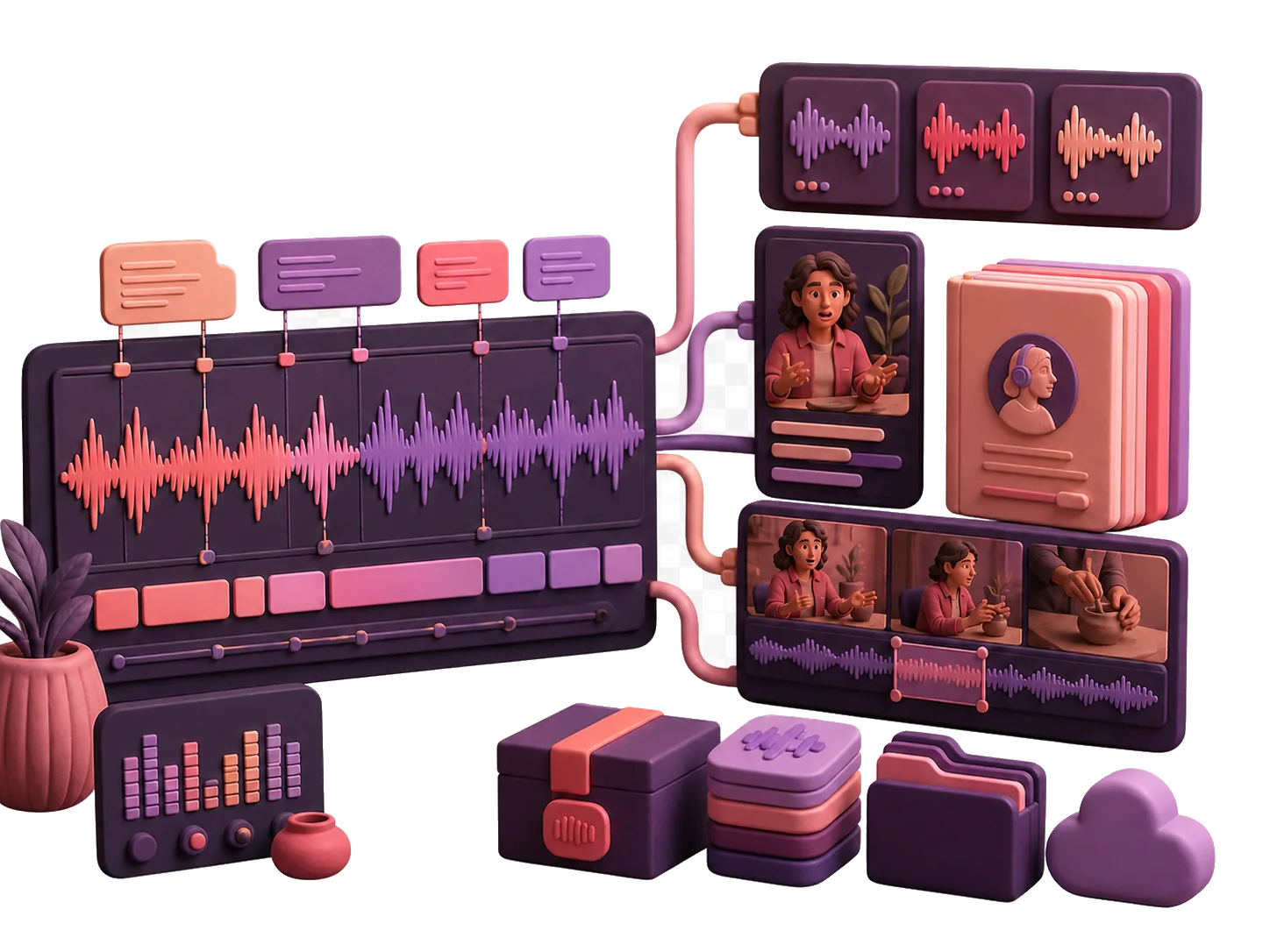
Transcript timing becoming clips, captions, and publishable media.
The pipeline
Select, caption, render.
Select
Find the moment in the transcript rather than by scrubbing. Search the library, read the line, and take the range around it. On a stock install the suggestions are extractive candidates pulled from the cue windows; with a language model configured they get better.
A transcript with a selected range and the clip range marked below it. Caption
Captions come from the same transcription pass, which ran with word-level timestamps on. That is what makes per-word emphasis possible: the timing is measured, not estimated afterwards from the text.
Render
Pick an aspect preset, a visualizer, and a quality profile, then render. The encode is x264 at a fixed quality per profile, so the same settings give you the same file.
Captions
Word-timed, because the timing already exists.
Speech recognition runs with word timestamps on by default, and those per-word times are carried through onto the cues. The caption renderer turns them into per-word karaoke timing rather than fading a whole line in at once.
The limit, stated: a cue that has no word timings falls back to a plain fade. That happens on imported cue tracks and on audio the recognizer could not time confidently, and it is a visible difference rather than a silent one.
Presets
What you actually choose.
Aspect and dimensions
Vertical and Shorts at 1080×1920, square at 1080×1080, landscape at 1920×1080. Vertical is the default when you do not say.
Visualizer
Waveform as a line, mirrored, or filled; frequency bars; spectrum; vectorscope. Plus named style presets so "clean speech" is one choice rather than six.
Platform safe areas
Named exclusion zones for YouTube Shorts, Instagram Reels, and TikTok, so captions and logos do not end up underneath the platform’s own interface.
Quality profile
Proxy, draft, standard, small, and high, mapping to fixed x264 quality settings. Proxy for checking the edit, high for the thing you post.
Brand kits
Your logo, and only your logo.
Audio is the exception worth knowing about: speech generated by the Chatterbox engines carries an inaudible watermark, disclosed on the voice-ethics page.
A brand kit is a per-user, append-only set of assets — a logo, a watermark, a sponsor mark — and overlay presets that place them: corner bugs, lower thirds, identity bands, quote cards.
There is no imposed watermark on video output. Nothing is stamped onto your render that you did not put there, at any tier, because there are no tiers.
Honest limits
What rendering costs you.
Video rendering is the most expensive thing this stack does. It is CPU-bound in the worker, and a long clip at the high quality profile takes real time on a small box.
Rendered video is also the thing that fills your disk. Renders are the one category the optional retention sweep is allowed to clean up, precisely because they can be produced again.
There is no 4:5 preset and no per-platform template library. Four aspects, six visualizers, three safe-area profiles.
Render one clip.
Take one good ninety seconds out of something you already recorded and see whether the captions land.